Getting Started with Slack
Slack is Xenter’s official communication platform — it replaces scattered text messages and long email threads with organized channels and direct messages. This guide walks you through signing in, setting up your profile, and using Slack’s key features to stay connected with your team.
Table of Contents
- What is Slack?
- Why Slack? Security & Productivity
- Signing In
- First-Time Setup
- Channels
- Setting Reminders with /remind
- Using Threads
- Notifications & Do Not Disturb
- Emoji Reactions
- Setting Your Status
What is Slack?
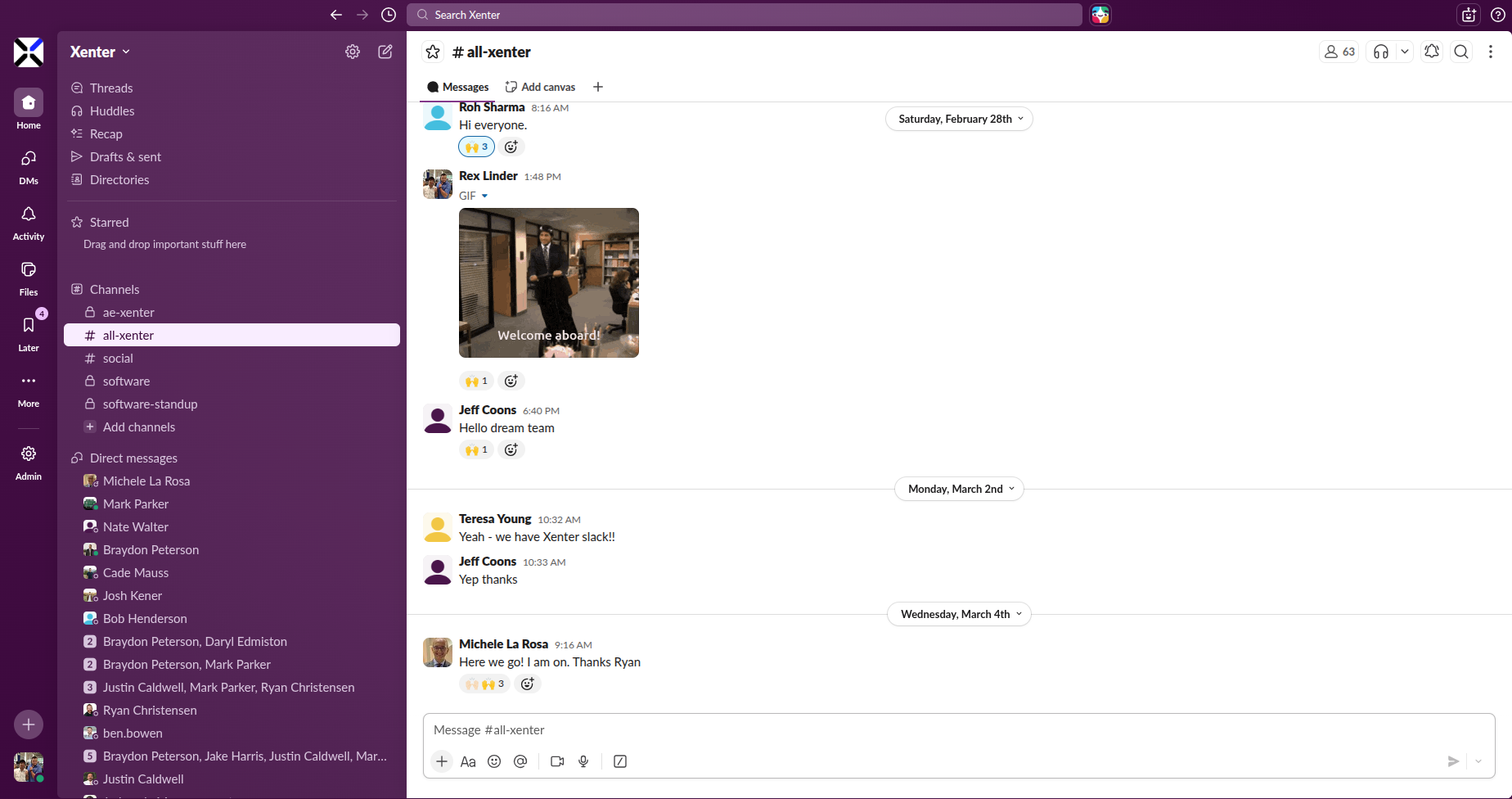
Slack is a workspace where your team communicates. Think of it as a company-wide group chat organized into channels (dedicated spaces for specific topics or teams) and direct messages (1-on-1 conversations). Instead of searching through email or scrolling through a chain of texts, you’ll find all your work conversations in one place.
Why Slack? Security & Productivity
Security
All company communications happen over Slack. This has a powerful security benefit: if you receive a text message from an unkown number claiming to be from a colleague — or worse, from an executive asking for urgent help — you know it’s not legitimate. This eliminates confusion and protects you from social engineering and fraud.
Productivity
Slack replaces scattered communication tools:
- Channels keep conversations organized by topic or team instead of losing important threads in your email inbox.
- Threads keep replies attached to specific messages, so channels stay readable and conversations don’t spiral.
- /remind lets you set yourself a reminder directly in Slack — no more sticky notes.
- Reactions (👍, ✅, ❤️) let you acknowledge a message without cluttering the channel with one-word replies.
Signing In
Open your web browser and go to slack.xenter.io — you will be redirected to the sign-in page automatically.
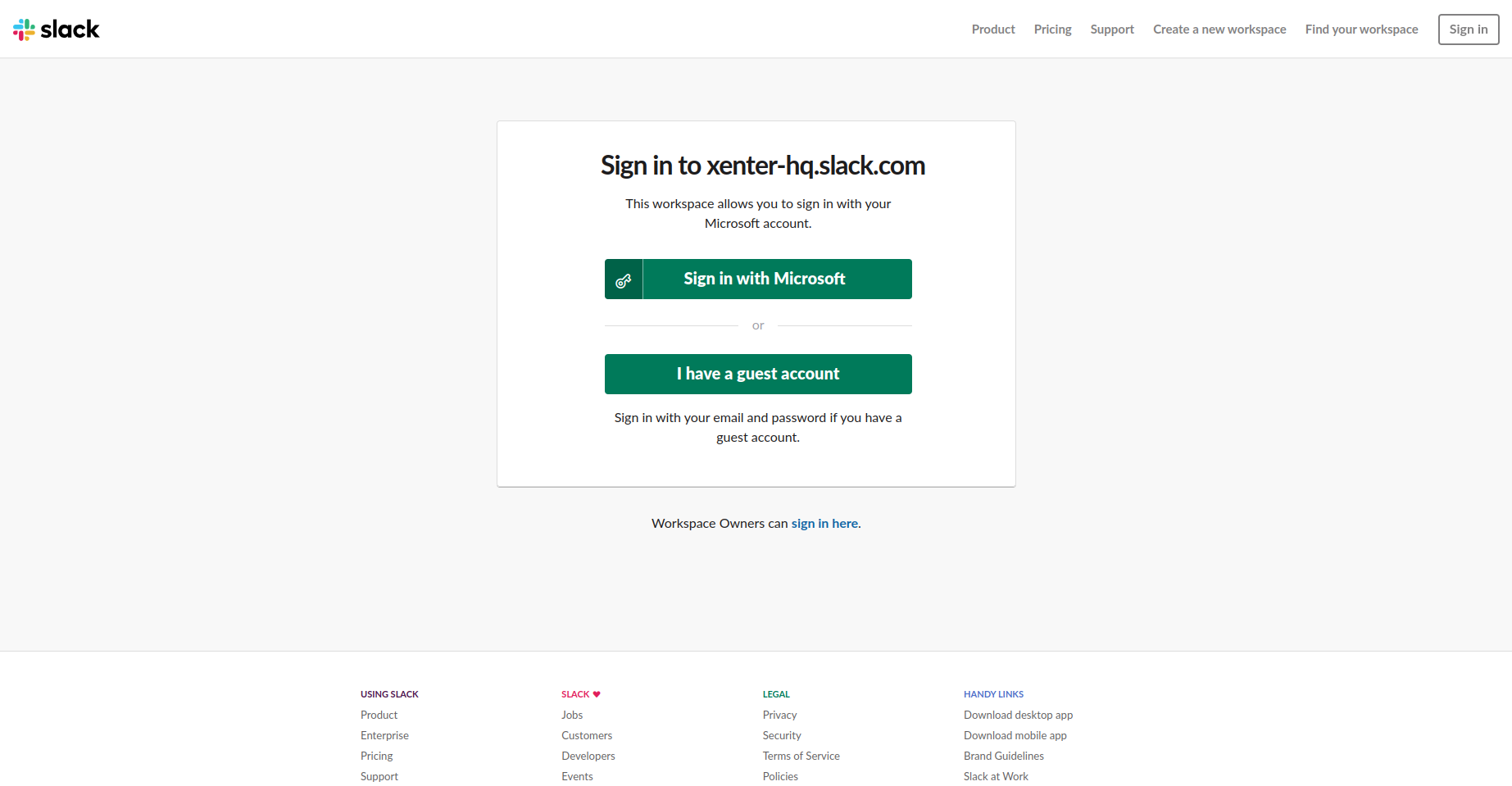
Slack SSO sign-in page Click Sign in with Microsoft.
Enter your Xenter account credentials.
You’re in! You’ll land in the
#all-xenterchannel, where you can see messages from your entire company.
First-Time Setup
Click your name in the bottom-left corner of the workspace and select Profile.
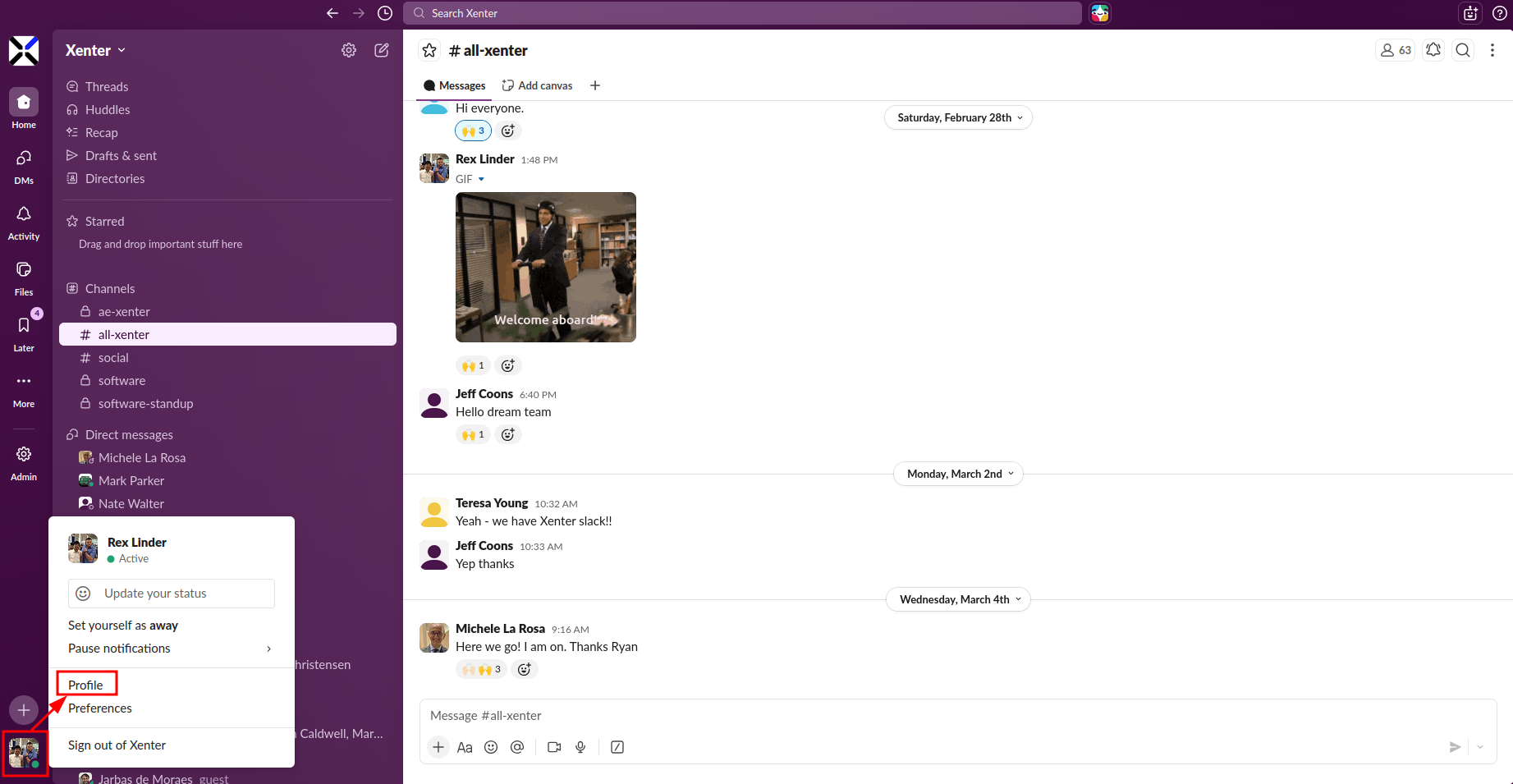
Slack profile menu Click on Edit next to your name and add your job title, set your timezone, and upload a profile photo.
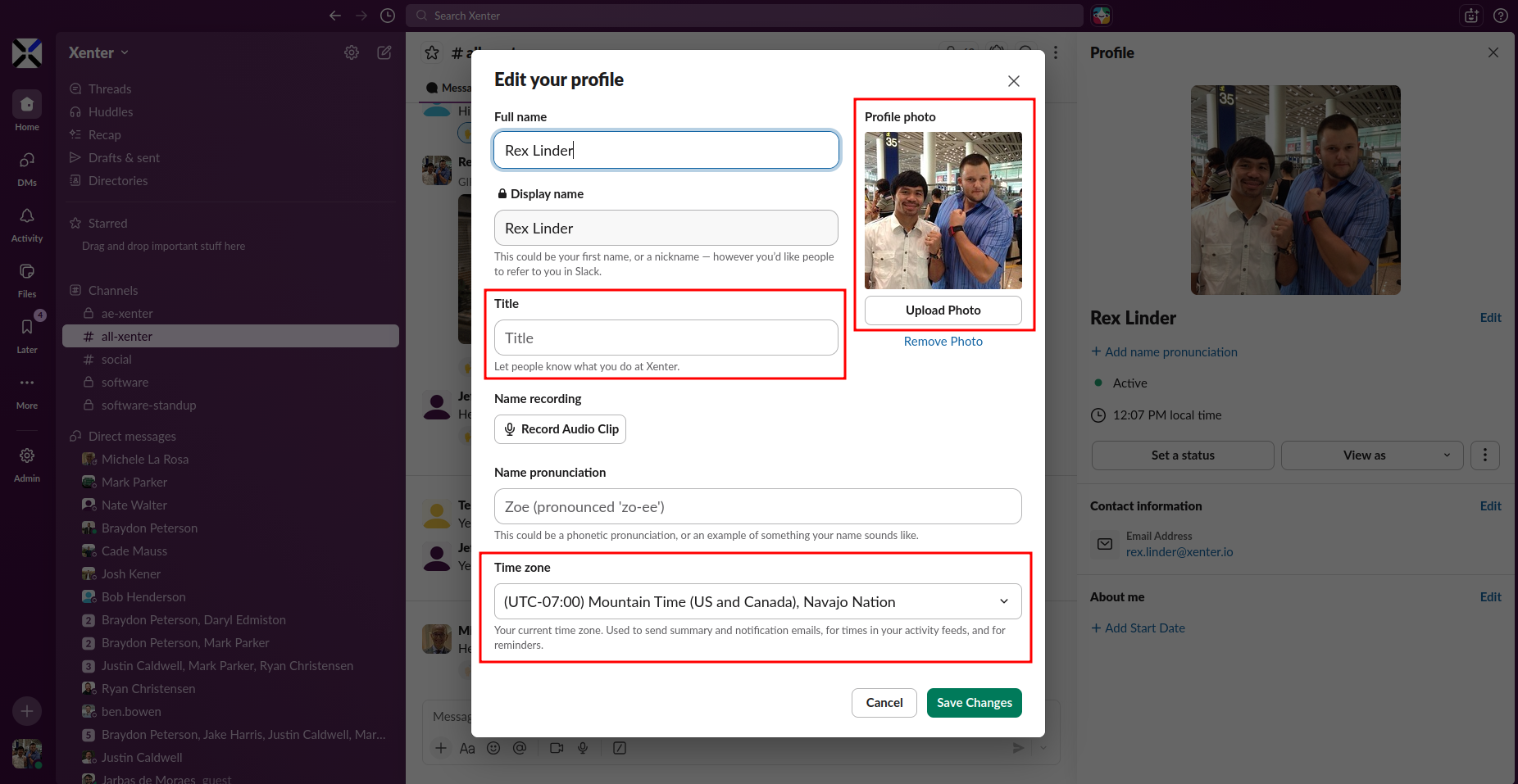
Slack profile edit Download the desktop app by visiting this link https://slack.com/downloads/ and clicking on download:
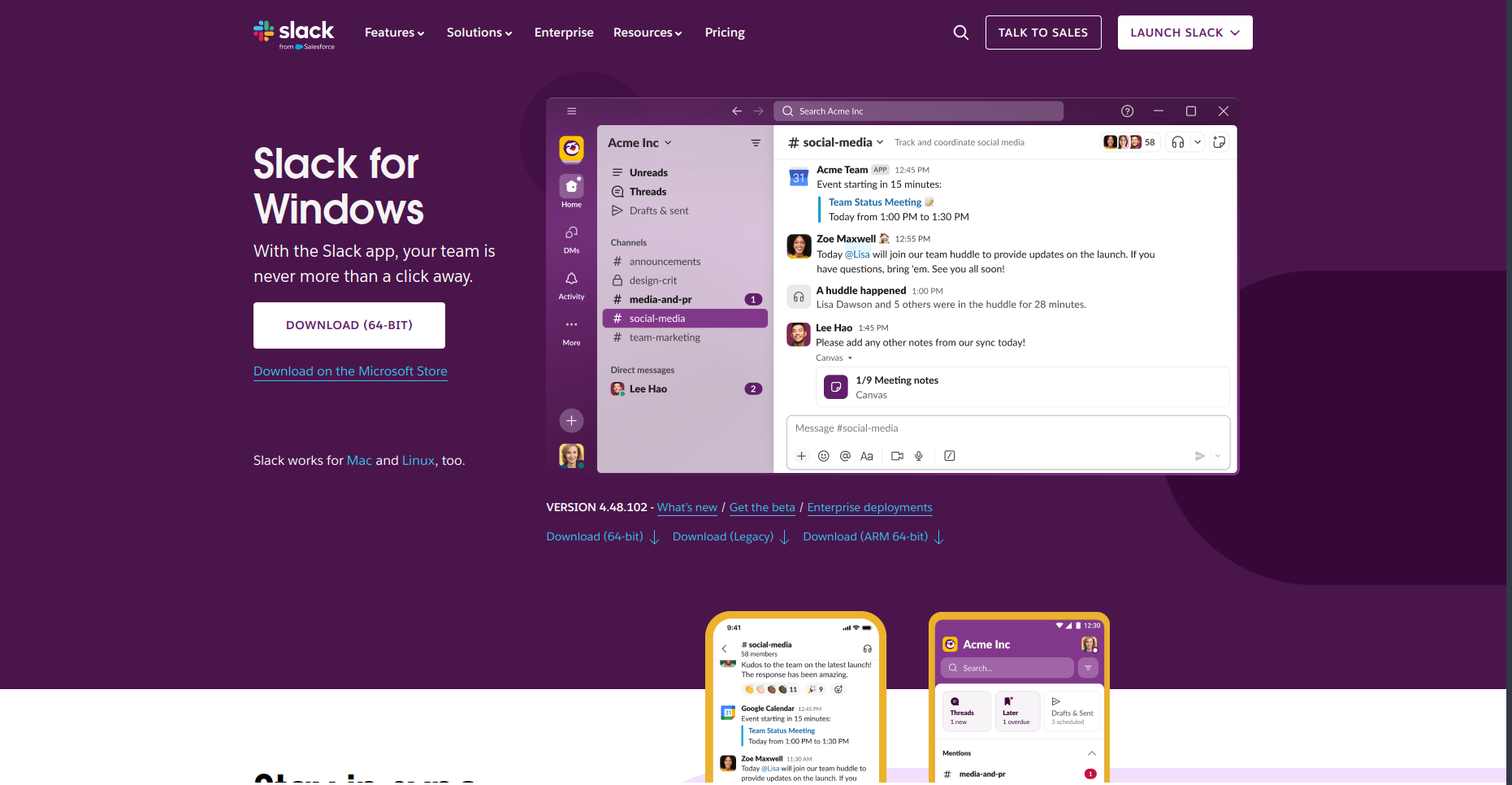
Slack download prompt Download the mobile app (search “Slack” on the Apple Store or Google Play) so you can stay connected while on the go.
Channels
A channel is a dedicated space for a topic or team — for example, #all-xenter for company-wide announcements, #engineering for the engineering team, or #social for off-topic fun.
How to browse and join channels:
Click Add channels in the left sidebar (or the + icon next to “Channels”).
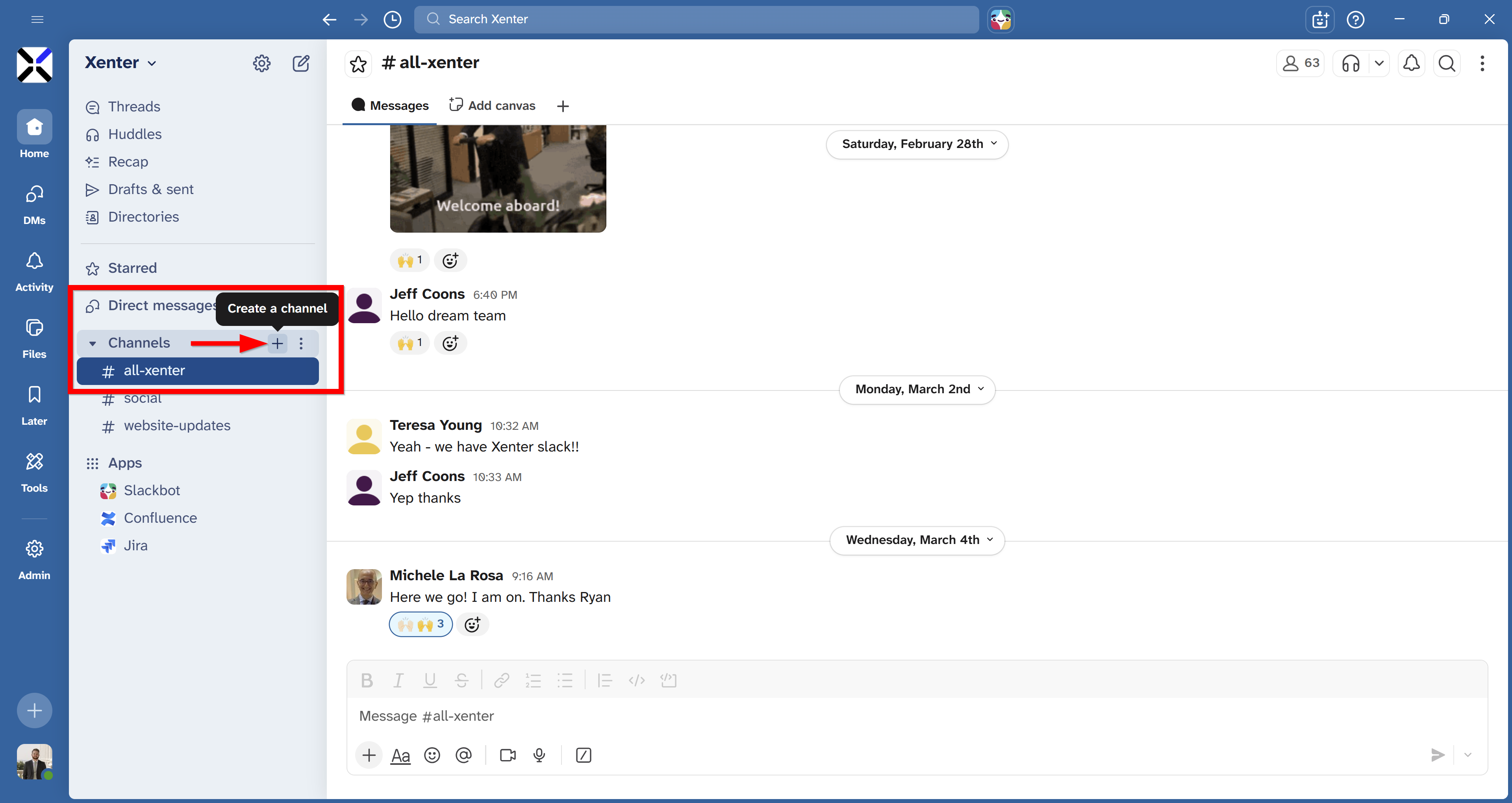
Slack channel browser Browse the list or search for a channel that interests you.
Click Join to add it to your sidebar.
A quick etiquette note: post in the right channel for the topic. Keep #general for company-wide announcements and milestones; use specific channels for team or project-specific conversations.
Setting Reminders with /remind
The /remind command lets you set a reminder for yourself directly inside Slack.
How to use it:
Type /remind me to [task] at [time] in any message box and press Enter. Here are a few examples:
/remind me to submit timesheet at 4pm every Friday/remind me to follow up with Sarah tomorrow at 9am/remind me to review PRs in 30 minutes
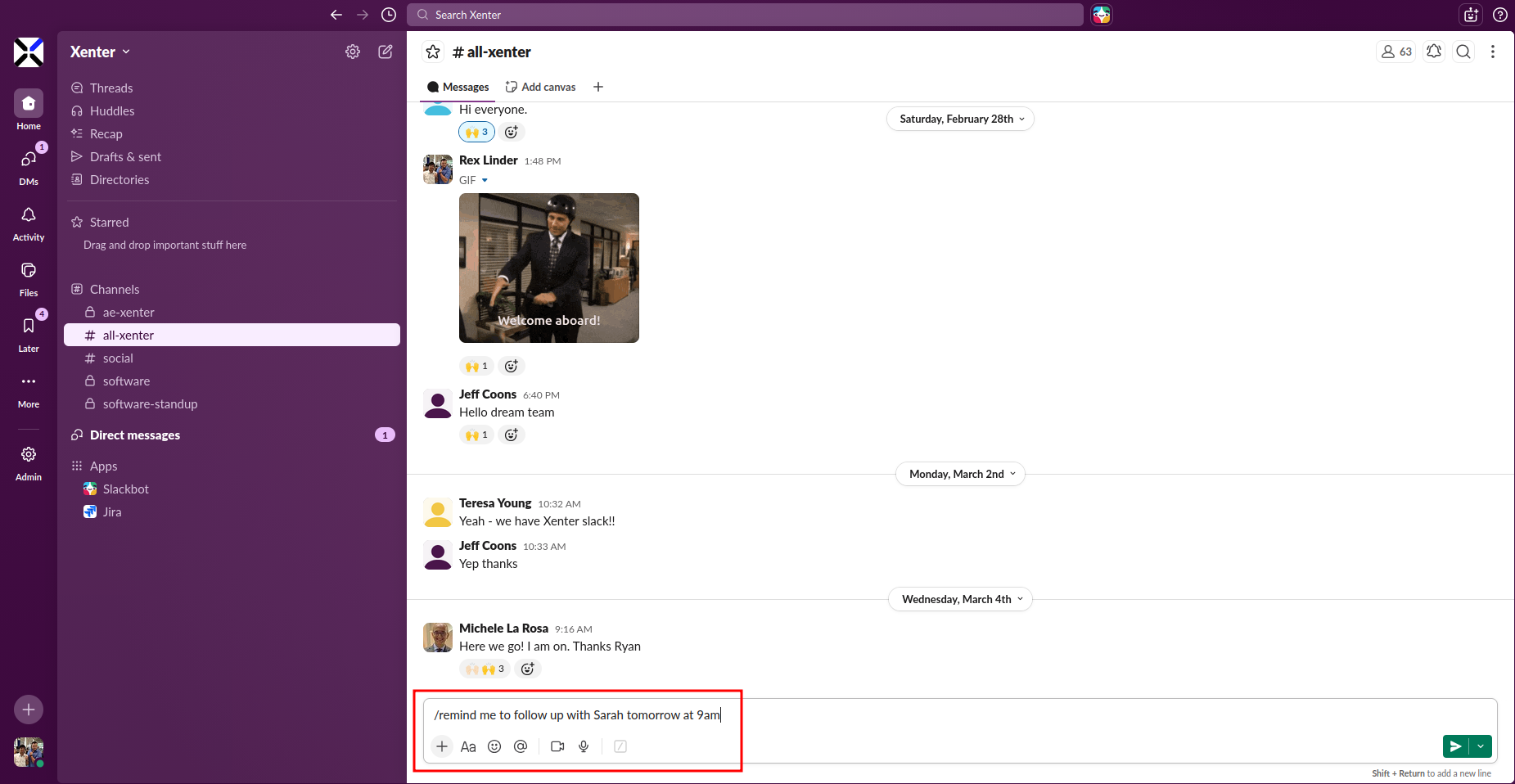
Slack will send you a message when the time arrives — no sticky notes needed.
There are many other commands you can use. If you are curious, just type / to see all of the possible options.
Using Threads
A thread is a focused conversation attached to a specific message. Threads keep replies organized so channels stay readable.
How to reply in a thread:
Hover over any message.
Click the Reply in thread icon (speech bubble).
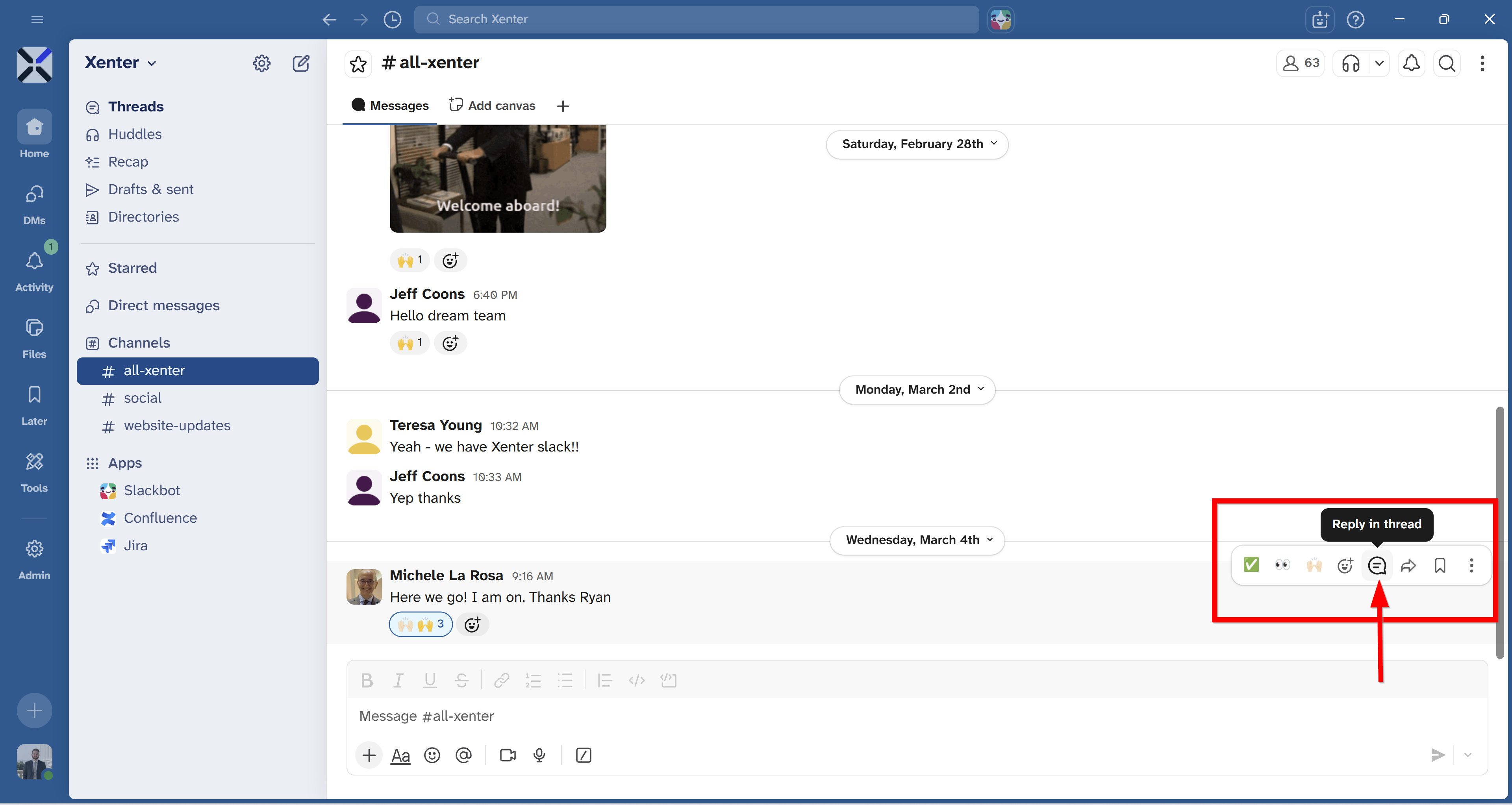
Slack thread reply panel Type your reply. It will stay attached to the original message instead of creating new lines in the main channel.
When to use threads: reply in a thread when responding to a specific message. Start a new message in the channel when you’re bringing up a new topic.
Notifications & Do Not Disturb
Tuning your notifications is the key to Slack feeling useful instead of overwhelming.
How to set notification preferences:
Click your profile picture in the bottom-left → Preferences → Notifications.
Choose your notification level: “All new messages,” “Direct messages & mentions,” or “Nothing.”
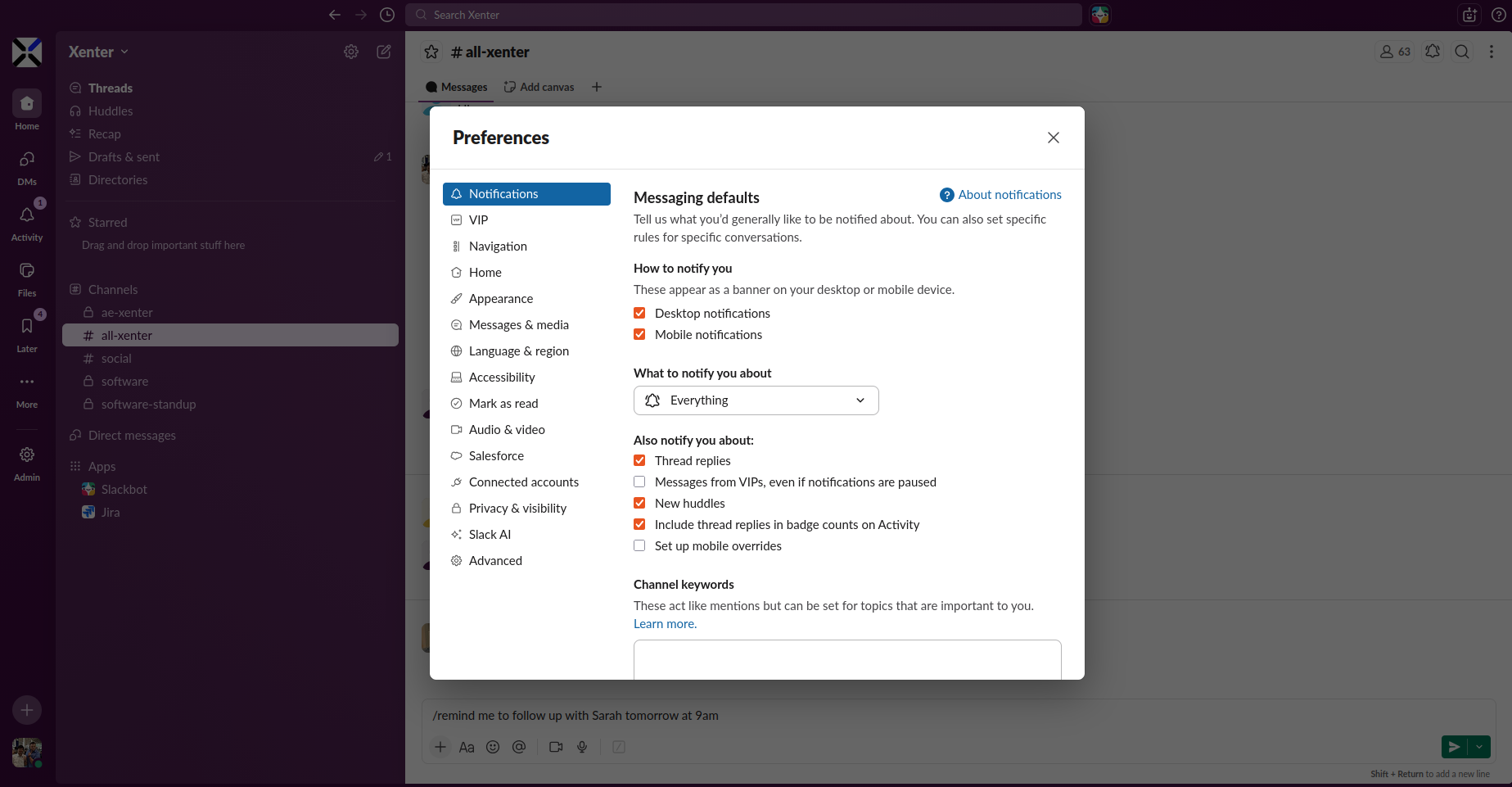
Slack notification preferences
How to mute specific channels:
- Right-click a channel in the left sidebar.
- Select Change notifications → mute noisy channels, or mark important ones as “All messages.”
Set Do Not Disturb (DND) hours:
Click the bell icon next in the top right corner.
Set a DND schedule so Slack goes quiet outside your work hours — no notifications during dinner or weekends.
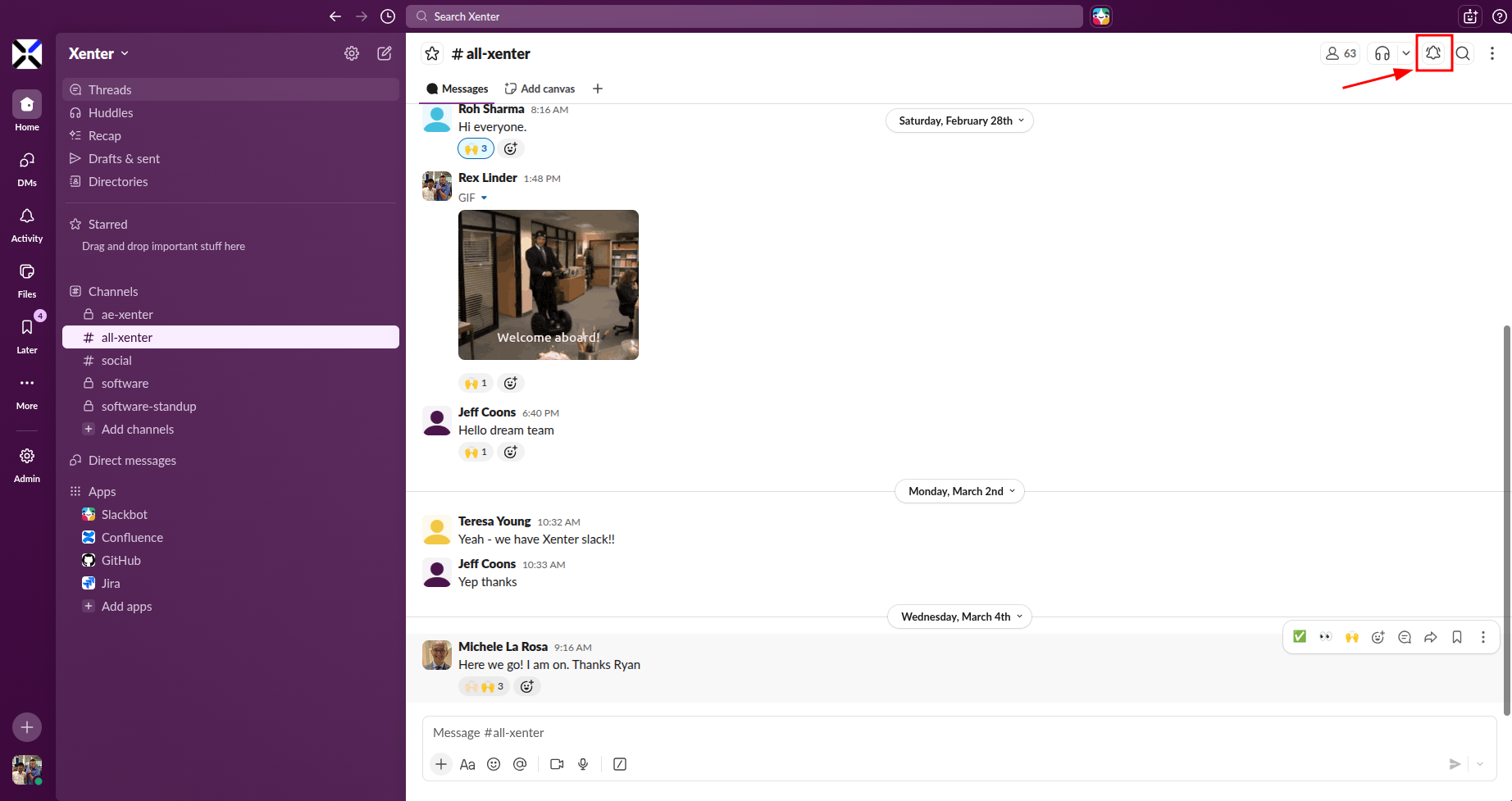
Slack bell icon
Emoji Reactions
Emoji reactions let you acknowledge a message with a quick 👍, ✅, or ❤️ instead of typing a one-word reply.
How to react:
- Hover over any message.
- Click the smiley face icon.
- Pick an emoji from the list.
Why it matters: reactions replace short replies like “Thanks!”, “Sounds good!”, or “Got it!” — keeping channels clean and readable while still letting teammates know you saw and care about their message.
Setting Your Status
Your status is a short message + emoji visible next to your name to all teammates. It lets colleagues know what you’re up to without having to ask.
How to set your status:
Click your profile photo in the bottom-left.
Select Update your status.
Type a message (e.g., “In a meeting,” “Out sick,” “On vacation”) and pick an emoji.
Set an expiry time if you want the status to clear automatically.
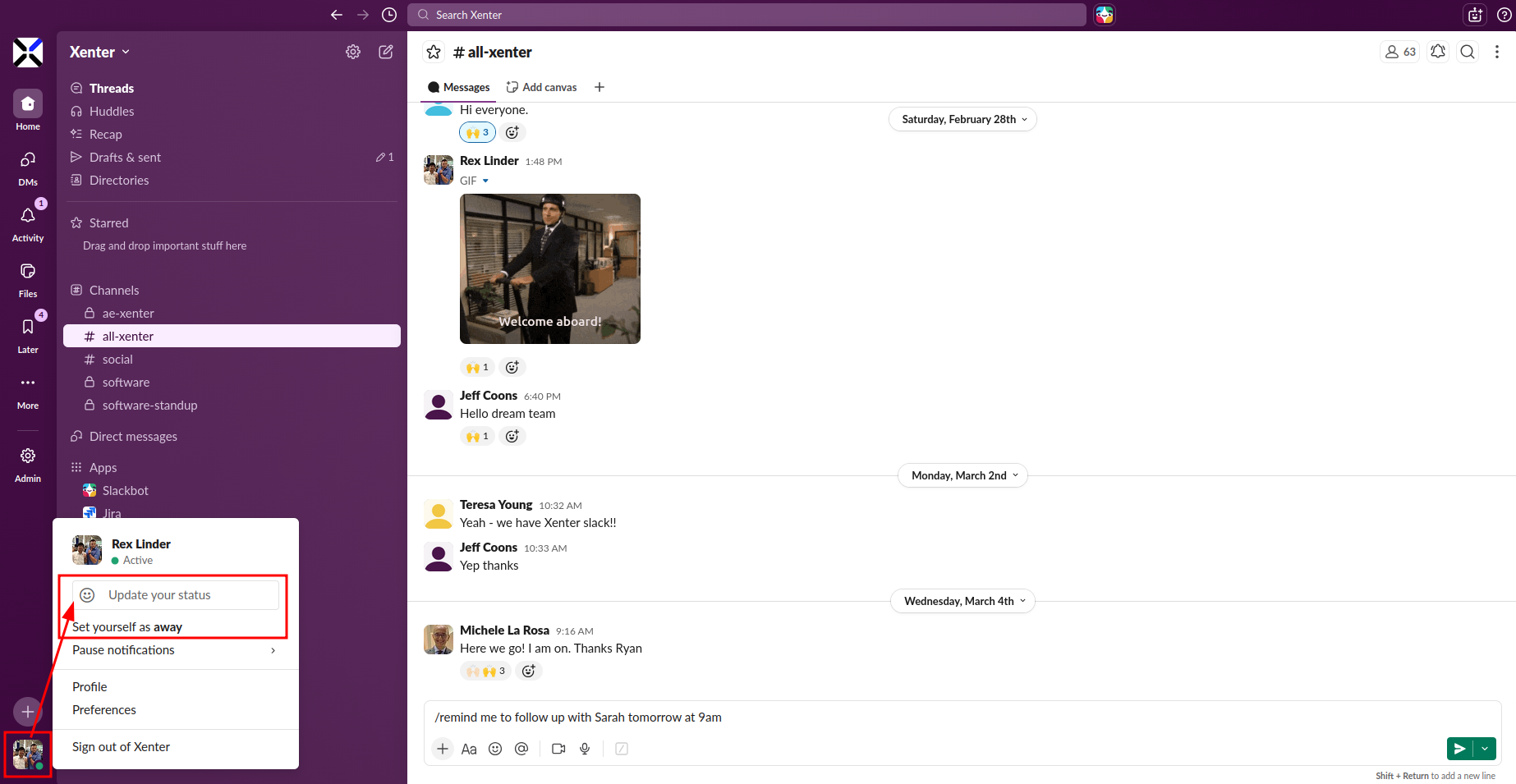
Slack status picker
Tip: set an out-of-office (OOO) status with a return date the same way you’d set an out-of-office email reply. It’s much faster than emailing the whole team.
Welcome to Slack! You’re all set. Start by joining a few channels related to your role, and don’t hesitate to ask questions in #general — we’re all here to help.